
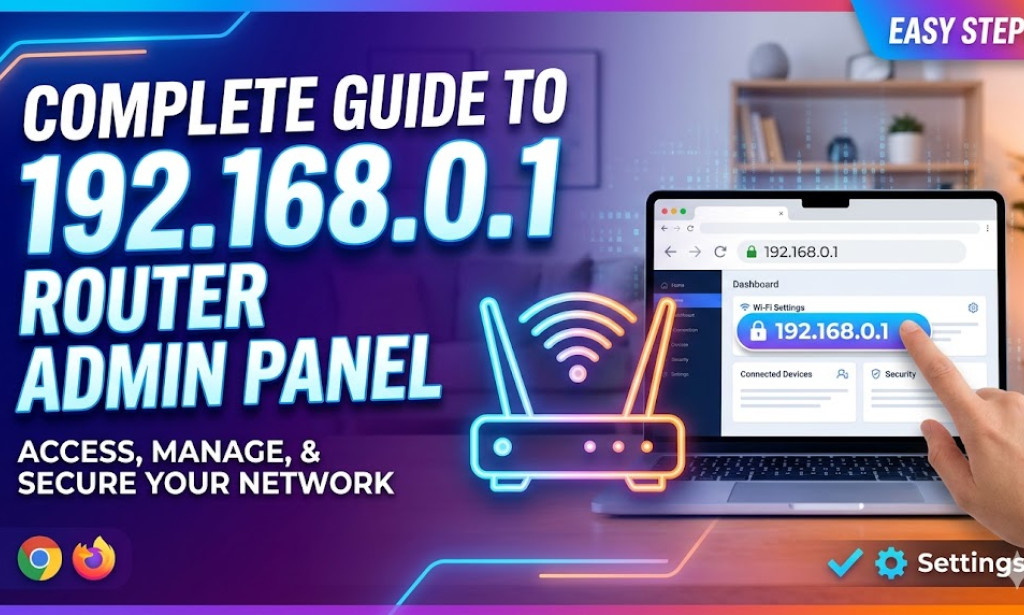
What is 192.168.0.1?
The IP address 192.168.0.1 is a private IPv4 address used as the default gateway for many home wireless routers and DSL modems. Major manufacturers like TP-Link, D-Link, and Tenda frequently use this address to host their web-based configuration interfaces. By accessing this panel, users can manage their internet connection, security settings, and local network preferences.
How to Access the Admin Interface
To access your router's internal settings, your device must be connected to the router's network. Follow these steps:
- Connect your computer or smartphone to the router via Wi-Fi or an Ethernet cable.
- Open any web browser (Google Chrome, Mozilla Firefox, Safari, or Microsoft Edge).
- In the address bar (not the search bar), type http://192.168.0.1 and press Enter.
- You should be greeted by a login page asking for a username and password.
Default Login Credentials
If you have never changed your router's login details, you can usually find the default credentials on a sticker at the bottom or back of the device. The most common combinations are:
- Username: admin | Password: admin
- Username: admin | Password: password
- Username: admin | Password: (leave empty)
If these do not work and you have forgotten a previously set password, you may need to perform a factory reset by holding the 'Reset' button on the device for 10 seconds.
Important Settings to Configure
Once you have successfully logged in, there are several key settings you should review to ensure your network is secure and performing optimally:
- Change Wi-Fi Name (SSID): Personalize your network name so it is easily identifiable.
- Update Wi-Fi Password: Use WPA2 or WPA3 encryption with a strong, unique password to prevent unauthorized access.
- Update Firmware: Manufacturers regularly release updates to fix security vulnerabilities and improve performance.
- Parental Controls: Many modern routers allow you to block specific websites or set internet usage schedules for children.
Troubleshooting Login Issues
If you are unable to reach the login page at 192.168.0.1, try the following solutions:
- Verify the IP: Ensure your router's default gateway is indeed 192.168.0.1. Sometimes it may be 192.168.1.1 or 10.0.0.1.
- Check Connections: Ensure the Ethernet cable is secure or that your Wi-Fi signal is strong.
- Disable VPNs: Virtual Private Networks can interfere with local network access; disable them before attempting to log in.
- Clear Cache: Try clearing your browser's cache or using an 'Incognito' or 'Private' window.
You must be logged in to post a comment.